Generate
The input for this process is the ../cldr-staging/production file, and the output is in the github repo cldr-staging. (If for the development version, the input is main or the maint branch, but we should change that.)
- Switch to the correct branch in the
cldr-stagingrepo, such ascharts/49.cldr-stagingis expected to be checked out as a sibling directory to your CLDR source repository, hence../cldr-staging.- If that branch doesn’t exist, create it (by copying from the next lowest numbered branch).
- You will then need to git delete any existing subdirectories in
docs/charts/incldr-staging. - To summarize, every chart branch in cldr-staging, such as
charts/49, should only have ONE charts directory:docs/charts/49.
- Make sure the settings and VM arguments are right for where you are in the release:
- Start, Mid-release, Prefinal release, or Final release (see below)
- Build the keyboard charts.
mvn --file=tools/pom.xml -pl :cldr-keyboard-charts integration-testFor more details and options, see keyboard-charts.
- Run the Java tool
GenerateAllCharts. The results for each will be in../cldr-staging/docs/charts/<version>/by_type/names.currency.htmland so on. - Spot-check for sanity.
- Start from the main page (eg
cldr-staging/docs/charts/<version>/index.html) - Check the DTD deltas (
cldr-staging/docs/charts/<version>/supplemental/dtd_deltas.html.- All major versions should have at least one row for that version.
- Dot versions may or may not: diff the /dtd/ files to check for whether differences should show up.
- Spot check the Delta Charts (
cldr-staging/docs/charts/<version>/delta/index.html)- ¤¤BCP47 Delta
- ¤¤Supplemental Delta
- ¤¤Transforms Delta
- a locale in a language you know.
- For other links on the main page, click on each of those links.
- On each of the subpages, take the first chart on each page, recursively.
- Use the “Index” link to go back up (not the back button), and make sure it goes to the right version of the page.
- Start from the main page (eg
- Push the updated branch to the
cldr-stagingrepo. It can be done with a PR, but a PR is not necessary (and nearly impossible to review).
Deployment
- As noted above, charts should be pushed to a branch such as
charts/49in the cldr-staging repository. - Each branch, for example,
charts/49, should only have ONE release’s charts, in thedocs/charts/49directory. Thecharts/50branch would havedocs/charts/50and so on. - It is not necessary to use pull requests to update these branches.
- Every time content is pushed to a
charts/branch, two deployments are started, one to ‘preview’ and one to ‘production’. (see previous section) - To approve deployments, go to Waiting Deployments
Preview Deployment
- Begin by approving the preview deployment. Click on Preview and then Review Pending Deployments.
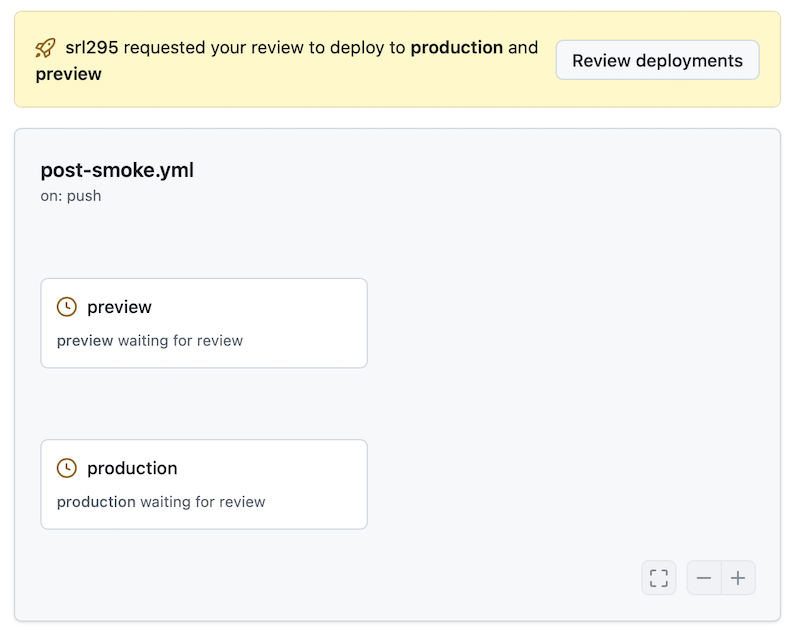
- Check the Preview deployment and approve it. A comment is optional.
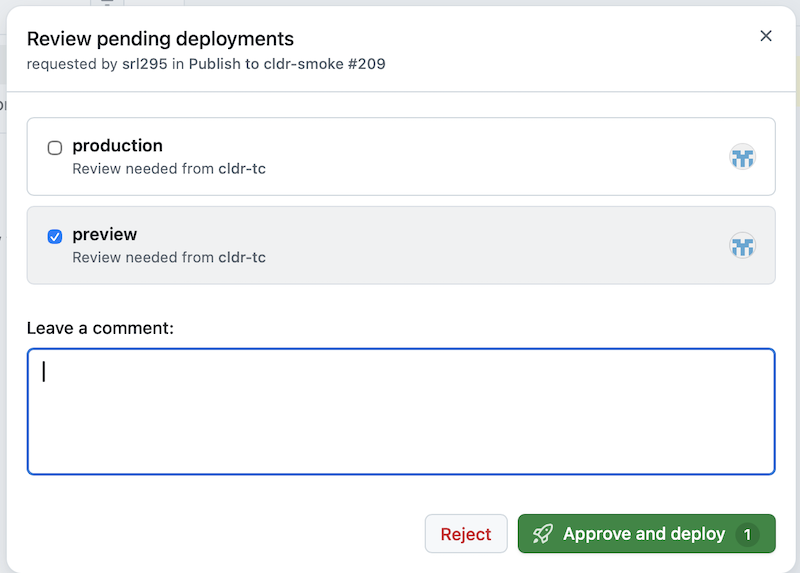
- The deployment will start. Click on the Summary button.
- Once the preview is deployed, it will display the preview link, such as:
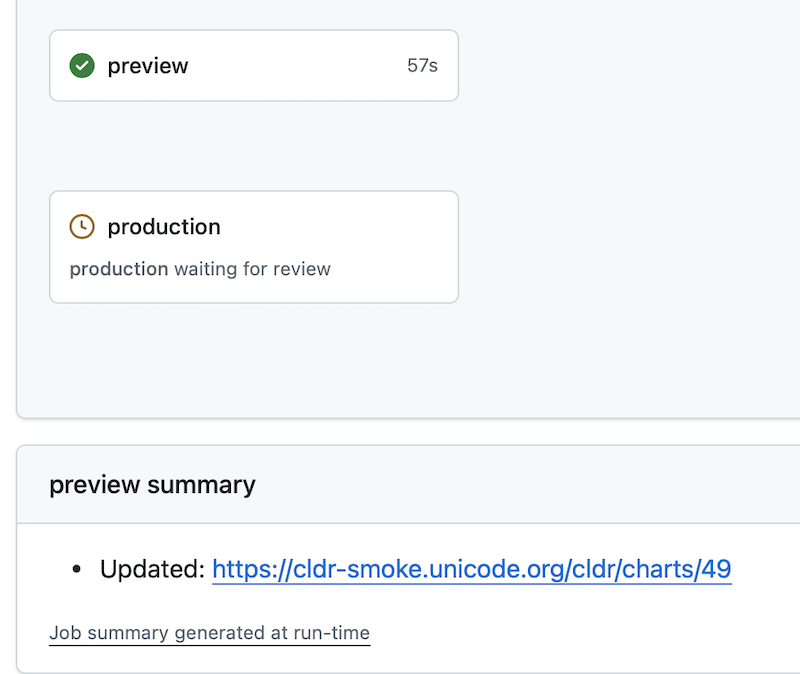
- Click on the link and validate that the charts are correct.
Production Deployment
-
Go to the review section above, and approve the production deployment.
-
The process is identical, except that it updates the production URL:
- Updated: https://www.unicode.org/cldr/charts/49
Chart versions throughout the release cycle
Start Release
- Make sure the version (eg
99) is right inToolConstants.java- Make sure the last number (eg 99.0) is in CLDR_VERSIONS
- Set DEFAULT_CHART_VERSION = “99”;
- Add an new folder with that number, such as
cldr-staging/docs/charts/99 - Create the archive (Creating the Archive) with at least the last release (if you don’t have it already)
- Use the same VM arguments as Mid-Release
Mid-release
- Use the VM arguements
- -DCHART_VERSION=99
- -DCHART_STATUS=beta // =default, uses trunk, calls it β
Pre-final Release
- VM Arguments
- -DCHART_VERSION=99
- -DCHART_STATUS=trunk (uses trunk, no β. Used at the end of the release, but before the final data is in cldr-archive)
- In the printout from
tsv/delta_summary.tsv, there is a listing of the sizes at the top- Something like the following:
- # dir file added deleted changed total
- TOTAL 30,276 3,601 10,909 2,153,094
- # dir file added deleted changed total
- Add those new figures to the release page (TODO: where?)
- Something like the following:
Final Release
- Make sure the settings are:
- -DCHART_VERSION=99
- -DCHART_STATUS=release (only uses the
cldr-archive, no β)
- Check the redirection links on test-chart-links.
- On
index.html; open it, and fix the version (eg to 25β => 25)
Modifying the chart programs
The chart programs have grown over time, and need some cleanup. For example, the supplemental charts duplicate code that is now in SupplementalDataInfo.java
ShowLanguages.java
The messages that they use are in a file util/data/chart_messages.html. The right cell contains the key, which is extracted by lines like:
PrintWriter pw = new PrintWriter(new FormattedFileWriter(index, "Zone \u2192 Tzid", null));
The key will be zone_tzid, in this case.